
In this article 8 sections
Image optimisation is the process of delivering an appropriate visual at an appropriate cost. That includes dimensions, compression, format and loading priority, but also whether the image belongs on the page at all. A small, irrelevant photograph is still unhelpful; a detailed product image can be worth a larger file when customers genuinely need the detail.
Begin by checking a representative page in the browser's network panel. Sort images by transferred size and identify which appears in the first screen. Keep a copy of the original assets before editing. Then work through these eight steps, measuring results rather than assuming a particular format or plugin guarantees a saving.
1. Choose the right format for the content
Photographs, screenshots and logos have different characteristics. JPEG can remain useful for photographs; PNG can suit lossless raster graphics; WebP and AVIF offer modern alternatives with different quality and encoding trade-offs. Compare actual exports instead of declaring one format universally smallest.
SVG is suitable for genuine vector artwork such as many logos and icons, but it is not a way to compress an ordinary photograph. Use official brand artwork where permission allows, preserve its proportions and handle uploaded SVG safely because it is a document format rather than just a pixel grid.
| Image | Formats to evaluate | Quality check |
|---|---|---|
| Photograph | AVIF, WebP or JPEG | Faces, gradients, texture and colour |
| Interface screenshot | Lossless WebP or PNG; other options if legible | Small labels and fine borders |
| Vector logo | Official SVG or suitable raster fallback | Correct shape, clear space and proportions |
| Transparent raster graphic | WebP, AVIF or PNG as supported | Edges on both light and dark surfaces |
Keep browser support and your publishing workflow in view. A modern image service or the HTML picture element can provide alternatives where needed. Do not simply rename a file extension; the encoded content must be the intended format.
2. Compress to an acceptable visual quality
Export a few quality settings and compare them at the size customers will see. Look for blurred text, banding in gradients and damaged fine detail. The smallest file is not the right result if it prevents someone assessing a product or reading an interface screenshot.
Avoid repeated lossy re-encoding. Generate delivery versions from the original, retain the master separately and document the workflow. Remove unnecessary metadata when appropriate, while keeping copyright, attribution or licensing information where your use requires it.
CMS optimisation plugins and image services can automate exports, but check their settings, costs and data handling. Test a sample batch first and confirm that the originals and a restoration route remain available. There is no fixed compression percentage that every source image will achieve.
3. Supply useful dimensions and responsive sizes
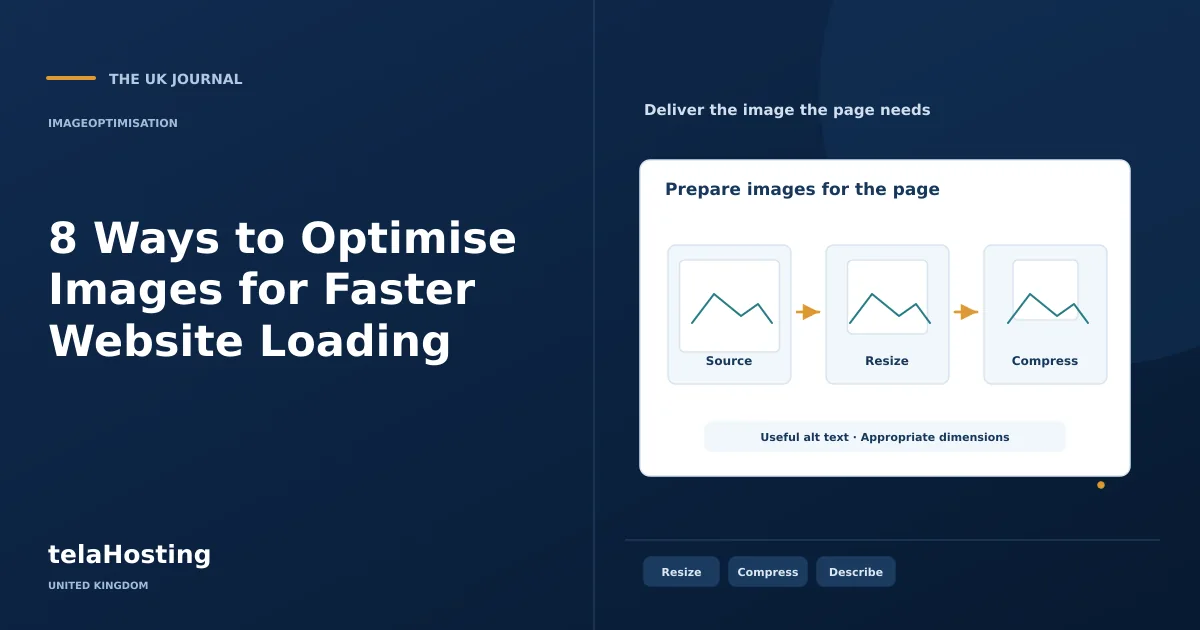
Resizing a huge image visually with CSS does not necessarily reduce the downloaded file. Generate dimensions suited to the layout, with enough resolution for the intended display and any genuine zoom feature. A small article thumbnail should not require the same resource as a full-screen product detail.
Use responsive image markup so the browser can choose among appropriately sized candidates. The responsive image guidance explains this delivery approach. Make sure the sizes information reflects the layout; incorrect hints can make the browser choose an unnecessarily large candidate.
Include intrinsic width and height, or an equivalent aspect-ratio reservation, so space exists before the image arrives. Check portrait and landscape crops on phones. An important object should not vanish because the container uses a different shape from the original photograph.
4. Prioritise visible images and lazy-load the rest
Load images near the top of the page promptly, particularly the main image likely to affect Largest Contentful Paint. Use lazy loading for suitable images farther down the page. Applying it to every image can delay precisely the content the visitor is waiting to see.
The browser's native loading="lazy" capability can help without a large JavaScript library. Its scheduling is controlled by the browser, so an image may load before it becomes visible. The browser-level lazy-loading guide explains the intended behaviour.
Check that gallery controls, print output and navigation to an image anchor still work. Loading priority is a delivery decision, not a reason to remove meaningful alternative text or leave a gallery unusable when optional scripts fail.
5. Use a CDN or image service deliberately
A CDN can cache images at distributed locations, and an image service may generate transformations on demand. These can be useful for a geographically spread audience or a large media library. Confirm that the service actually caches the resources you expect and that the origin remains protected.
Standardise transformation sizes to avoid generating countless nearly identical variants. Check the behaviour of missing originals, cache invalidation and service outages. Record supplier costs and account ownership so a redesign does not unexpectedly depend on a former agency's account.
Do not assume a UK domain means the image is served from a UK location, or that every cache request avoids the origin. Inspect real response headers and timings. A CDN can improve delivery while leaving an oversized image oversized.
6. Use accurate names, alternative text and context
Give files meaningful names, such as ceramic-coffee-cup-blue.webp, rather than stuffing a list of keywords into them. Write alternative text for the image's purpose in context. A decorative background may need an empty alternative, while a product image should communicate relevant visual information.
For an actual screenshot, state what is shown and provide important details in surrounding text. Do not alter a competitor's displayed price or create a synthetic interface and label it a real capture. Google's image SEO guidance supports useful descriptions and contextual information, without promising that filenames alone produce rankings.
Alternative text and filenames improve meaning and accessibility; they do not make the image bytes download faster. Keep those benefits distinct so your optimisation report remains accurate.
7. Configure caching with an update strategy
Set appropriate cache headers for public images and use versioned URLs when a file changes. A long cache lifetime is useful for immutable assets, but replacing a file at the same address can leave customers seeing an older version. Browser caches do not necessarily check the origin on every visit.
Depending on your stack, headers may be configured by the web server, CMS, object store or CDN. Apache .htaccess instructions do not apply to every server. Back up configuration, use the host's supported method and inspect the actual response after deployment. MDN documents the underlying HTTP caching behaviour.
Review public and private images separately. Product photographs may be safe for public caching, while customer uploads, invoices and account documents may require access controls. Do not apply a broad cache rule to every image-like response without checking what the application serves and who is permitted to see it.
Include image publishing in handover training. Explain which original to retain, which crops to export and how to write context-appropriate alternative text. A technically correct setup can quickly regress when editors have no clear upload process.
8. Test the delivered result
Compare before and after using the same page, test location and device conditions. Record transferred image bytes, chosen responsive candidates, visible quality and loading stability. Check both a cold load and a repeat visit to distinguish delivery savings from cache effects.
Use a lab tool to diagnose issues and field data where available to understand real visits. Review different page types and real phones. Then document the export settings and publishing process, so the next upload does not reintroduce an oversized image. Good image optimisation is a repeatable editorial habit as much as a technical adjustment.
Follow the subject
Your perspective
Join the discussion
Ask a question, share what worked, or add a useful detail.
Loading discussion…
Comment moderation
Only approved contributions appear in the discussion.