
In this article 8 sections
Updating a website keeps its software maintained and can correct security defects, compatibility problems and functional bugs. Leaving an unsupported component in place indefinitely is not a dependable strategy. Equally, installing every change without checking dependencies can break the service customers rely on.
A safe process is proportionate to the website. A small brochure site and a busy shop do not need identical release procedures, but both need an owner, a recovery route and checks that the intended functions still work. No update workflow can honestly promise that failures are impossible.
Understand the change before installing it
Identify whether the update affects core software, a theme, an extension, the runtime or a connected service. Read the release notes and supported-version requirements. A visual theme update can affect navigation; a payment extension can change checkout behaviour; a runtime change can expose old custom code.
Record current versions and important dependencies, including custom snippets and integrations. Remove undocumented changes from core files through a planned development process, because normal updates can overwrite them. WordPress's update instructions distinguish supported automatic and manual routes.
Prioritise a security fix according to the actual vulnerability and exposure. Do not delay an urgent correction merely to fit a monthly calendar. If a component is abandoned, plan a maintained replacement rather than treating an old version as permanently safe because it still appears to work.
Create a recovery point you can use
Back up the files, database and relevant configuration before a consequential change. Confirm the backup completed, where it is stored and what credentials are required to restore it. A success email alone is not evidence that the complete application can be recovered.
Manual backups offer control but can omit the database or important hidden files. Automated systems improve consistency but can fail because of storage limits, credentials or configuration. Use a documented process with monitored results rather than describing either method as set-and-forget protection.
The WordPress backup handbook explains the need for both database and file coverage. Test restoration in a separate environment before you depend on it during a live incident. Keep recovery information available even if the website's own administration area is down.
Prepare staging without creating new risks
Staging is a separate environment used to test the change. Match the relevant software and configuration to production, but protect access and handle copied personal information appropriately. A search-engine discouragement setting is not access control.
Disable or safely redirect outgoing email, live payment operations, scheduled jobs and integrations that could contact customers or alter external systems. Use payment test modes and sandbox credentials where the service supports them. Confirm these settings rather than assuming the staging tool changes every connection automatically.
Refresh staging when necessary so the test reflects the current site. An old clone missing recent extensions and configuration gives false confidence. At the same time, do not copy the staging database back over live customer data merely because that is the easiest deployment button.
Choose an update order from compatibility requirements
There is no universal rule that core must always be updated before every plugin or theme. A vendor may require an extension update first to support a new core release, or a runtime change may require several components to be compatible together. Follow the relevant release instructions and test the combination.
For routine changes, installing one component at a time can make conflicts easier to identify. Record each version and result. For a coordinated major upgrade, plan the required sequence rather than leaving the website temporarily in an unsupported mixture of versions.
Use official sources or the component's legitimate update mechanism. Avoid unofficial “nulled” packages and unreviewed snippets offered as quick fixes. If a paid licence expired, resolve ownership and support access instead of silently substituting an untrusted copy.
Test functions, not just appearance
| Area | Useful checks |
|---|---|
| Public pages | Important templates, links, images and logged-out content |
| Navigation | Mobile menu, keyboard focus, dialogs and search |
| Forms | Validation, submission, delivery and confirmation |
| Accounts | Login, permissions, reset messages and session handling |
| Shop or booking | Options, stock or availability, supported test payment and final records |
| Performance | Representative loading, interaction and cache behaviour |
| Search output | Titles, canonicals, indexability and relevant structured data |
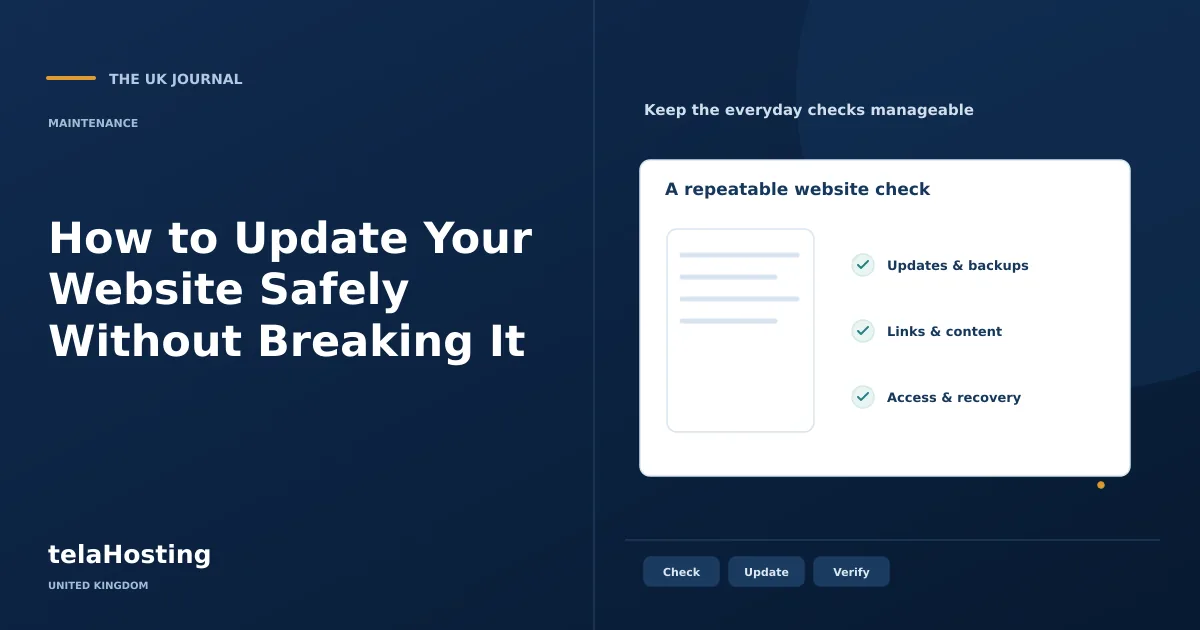
Test on more than one browser and a real phone. Include enlarged text and keyboard operation. Clear or vary caches deliberately so you see both the newly generated output and the visitor experience with previously cached assets.
Check logs for errors even if the page appears normal. Some failures affect background processing, mail delivery or only a less common route. A brief homepage visit cannot validate an entire business application.
Deploy with live data in mind
Choose an appropriate release window and make sure someone can investigate afterwards. For transaction-heavy changes, decide whether writes need a short controlled pause and communicate any planned service interruption. Keep a fresh recovery point and record the deployment time.
Deploy the tested code and required configuration using the supported workflow. Treat database migrations separately from ordinary file changes. A staging database can contain stale orders, accounts and settings; overwriting production with it may lose legitimate activity since the clone was created.
Purge or version caches as needed, then repeat essential checks in production. Check the real email route, scheduled jobs and payment configuration because staging used different credentials or modes. Confirm public and administrator behaviour separately.
Investigate conflicts and roll back deliberately
If a failure appears, identify its scope and compare it with the change log. Use error messages, logs and the last known working version. On staging, isolate a suspected component methodically. Avoid repeatedly disabling unrelated live functions without recording what changed.
WordPress provides debugging tools, but diagnostic output should not expose paths, credentials or customer information to public visitors. Keep logs access-controlled and return temporary debug settings to the intended state after the investigation.
A file rollback and a full database restore are different actions. If new orders arrived after the backup, restoring the entire old database can erase them. Preserve current data, understand any schema changes and obtain appropriate specialist help before a broad restore. A clean rollback should restore service while accounting for activity since the recovery point.
Do not keep a vulnerable old release indefinitely after a temporary rollback. Document the issue, contact the responsible supplier and plan the corrected update or replacement. Recovery is a route back to controlled maintenance, not a reason to abandon updates.
Use automation with ownership and monitoring
Automatic updates can apply important fixes promptly and reduce routine work. Their suitability depends on the component, site complexity, backup process and ability to detect failure. A notification sent to an unmonitored inbox is not operational oversight.
Define which updates are automated, which need staging and who responds to an error. Check the application's current configuration rather than assuming default behaviour. Keep uptime and transaction checks appropriate to the site, and review update logs after automated changes.
After a release, watch errors, customer reports and performance trends. Search metrics may change for many reasons, so first verify concrete settings and broken routes before attributing every movement to an update. Retain a concise release record and reuse the checklist next time.
When reviewing WordPress hosting, ask which management, staging and recovery functions the particular plan actually includes. A clearly agreed division of responsibility helps turn updates into routine work while keeping the website recoverable when a change does go wrong.
Follow the subject
Your perspective
Join the discussion
Ask a question, share what worked, or add a useful detail.
Loading discussion…
Comment moderation
Only approved contributions appear in the discussion.